> ## Documentation Index
> Fetch the complete documentation index at: https://docs.rakulog.ai/llms.txt
> Use this file to discover all available pages before exploring further.
# Google カレンダー連携手順
> RakulogでGoogleカレンダーを連携する手順を、初回/再連携の流れと注意点(権限チェック漏れで予定が表示されない原因)を含めて解説します。」
このドキュメントは、Rakulog に Google カレンダーを連携して **「Web会議の予定」** に予定を表示させるための手順です。
## 事前準備
* Google アカウントにログインできること
* Google カレンダーに予定が入っていること(※現在は **メイン(Primary)カレンダー** の予定が対象です)
## 連携手順(初回)
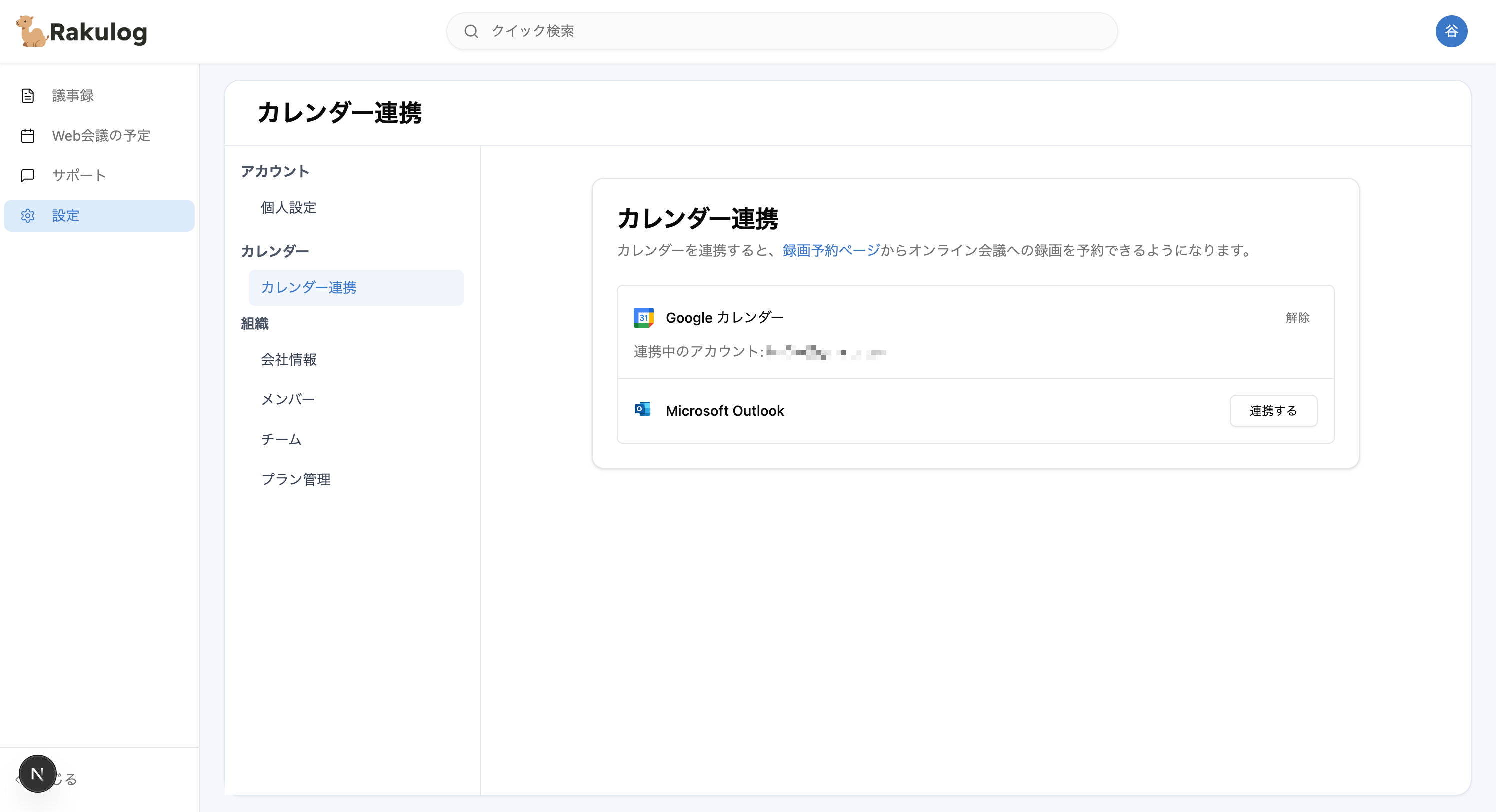
1. Rakulog にログインし、左メニューから `設定` → `カレンダー連携` を開きます。
2. `Google カレンダー` の `連携する`(または `再試行`)をクリックします。
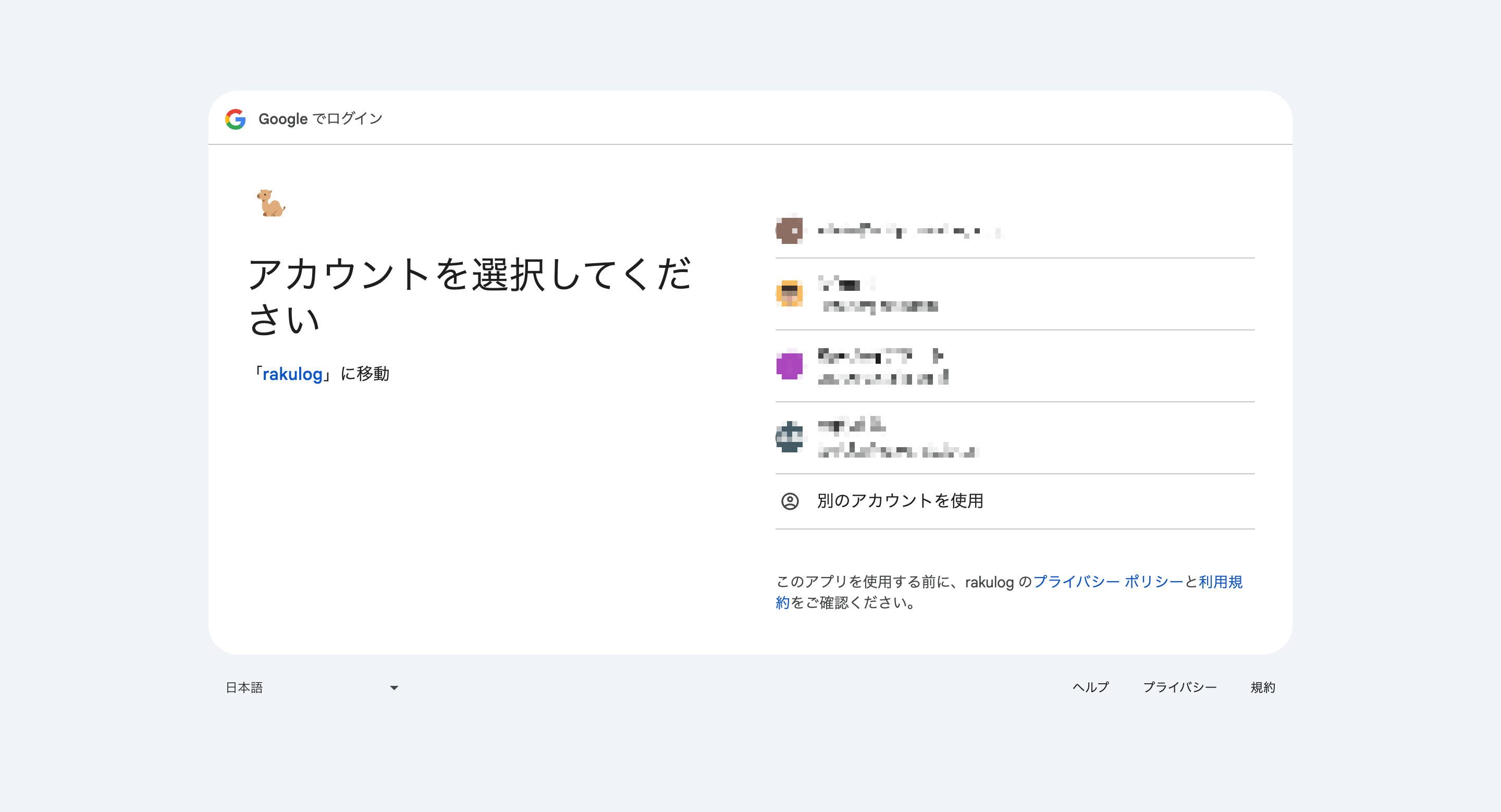
3. Google アカウントの選択画面で、連携したいアカウントを選びます。
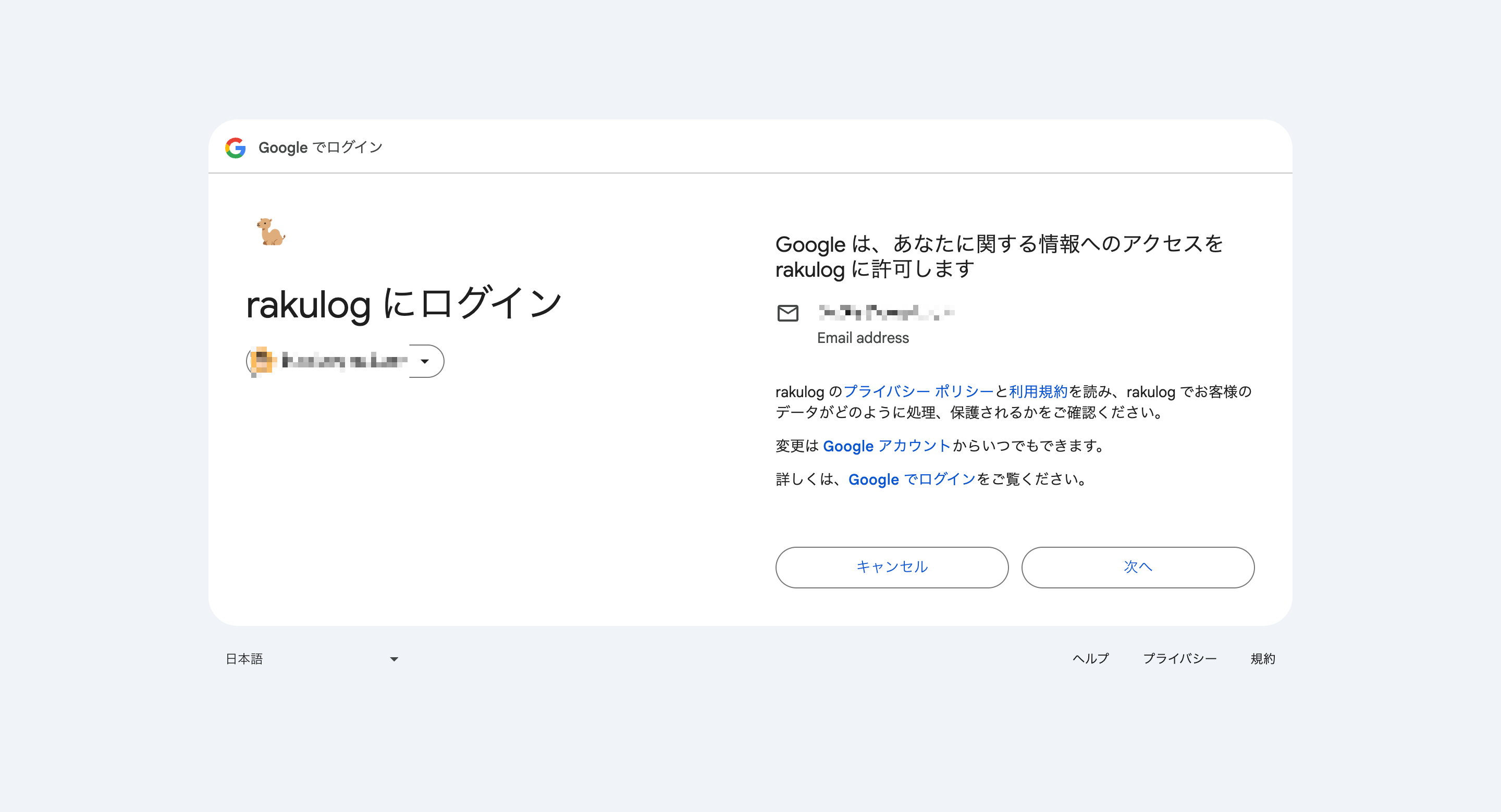
 4. 「Google は…へのアクセスを rakulog に許可します」画面で `次へ` を押します。
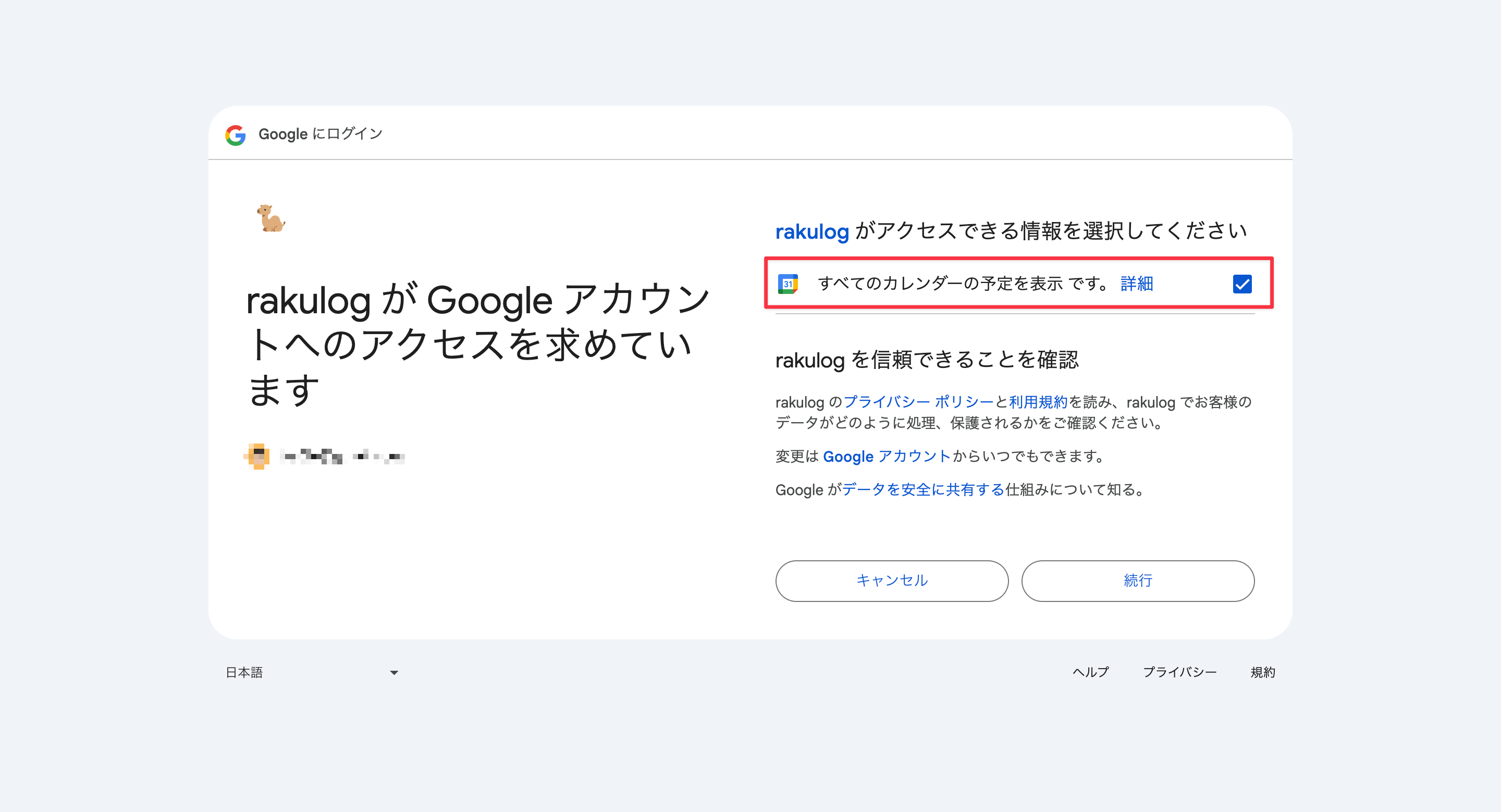
 5. 「rakulog がアクセスできる情報を選択してください」画面で、**「すべてのカレンダーの予定を表示」**(Google カレンダー)に **必ずチェックを入れて** `続行` を押します。
> 重要:Google の権限画面で **「すべてのカレンダーの予定を表示」**(Google カレンダー)にチェックを入れずに続行すると、連携が完了したように見えても予定が表示されません。
5. 「rakulog がアクセスできる情報を選択してください」画面で、**「すべてのカレンダーの予定を表示」**(Google カレンダー)に **必ずチェックを入れて** `続行` を押します。
> 重要:Google の権限画面で **「すべてのカレンダーの予定を表示」**(Google カレンダー)にチェックを入れずに続行すると、連携が完了したように見えても予定が表示されません。
 6. Rakulog 側に戻り、`連携中のアカウント: xxxx@gmail.com` のように表示されれば連携完了です。
 ## よくある原因(予定が表示されない)
### カレンダー権限のチェック漏れ
次のように **カレンダー権限のチェックが入っていない状態** で `続行` してしまうと、Rakulog は予定を読み取れません。
## よくある原因(予定が表示されない)
### カレンダー権限のチェック漏れ
次のように **カレンダー権限のチェックが入っていない状態** で `続行` してしまうと、Rakulog は予定を読み取れません。
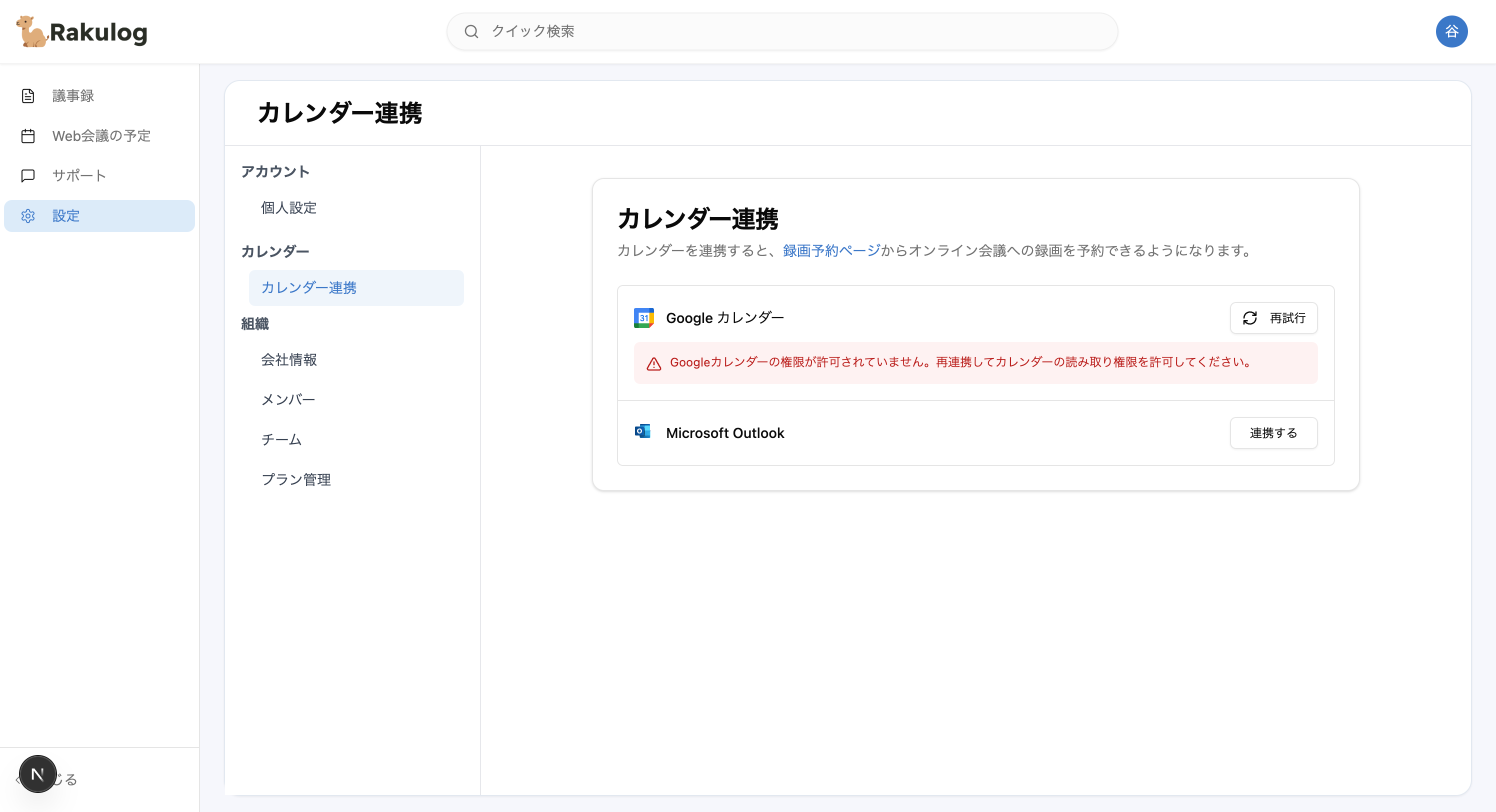 **対処**:`設定` → `カレンダー連携` で一度 `解除` してから、もう一度連携をやり直してください(チェックを入れた状態で続行)。
## 再連携(2回目以降)
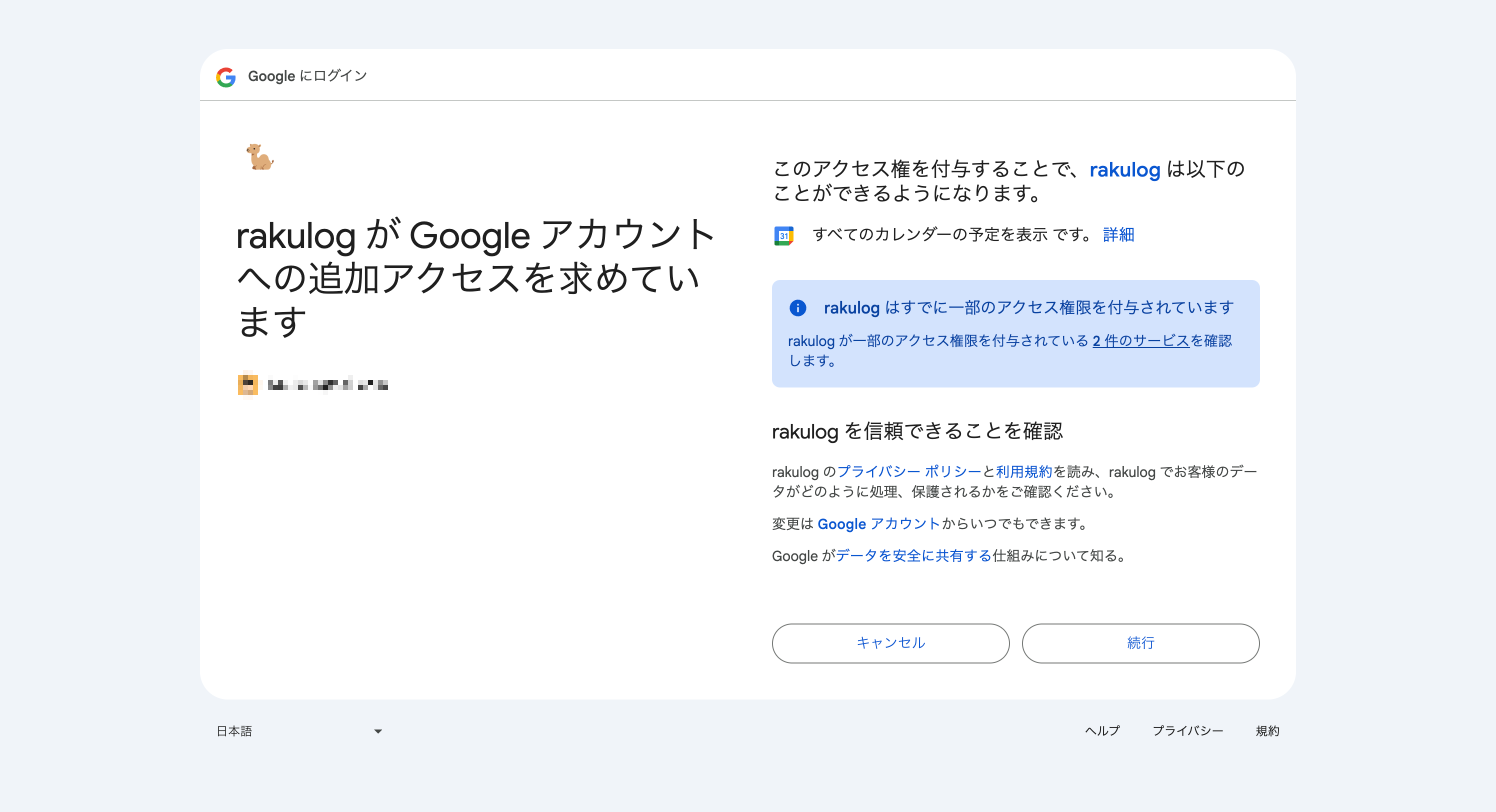
すでに権限が付与されている場合、Google 側で「すでに一部のアクセス権限が付与されています」と表示され、チェックが不要な場合があります。その場合はそのまま `続行` で問題ありません。
**対処**:`設定` → `カレンダー連携` で一度 `解除` してから、もう一度連携をやり直してください(チェックを入れた状態で続行)。
## 再連携(2回目以降)
すでに権限が付与されている場合、Google 側で「すでに一部のアクセス権限が付与されています」と表示され、チェックが不要な場合があります。その場合はそのまま `続行` で問題ありません。